 Shadow DirectorFrançais
Home › Guides › A browser football game: how it really works
A browser football game: how it really works
No file to install, no update to run. But what about saving, phones, language or 3D? Here are the concrete answers.
Open and play
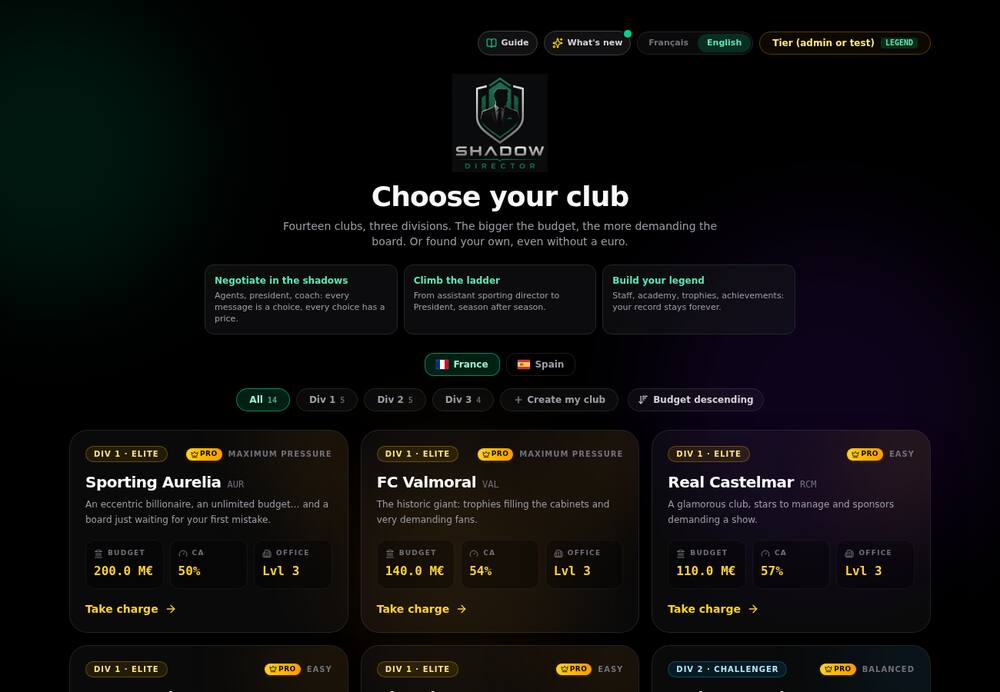
Shadow Director runs straight from its web address, on computer, phone or tablet. There is nothing to download or install, and no account is needed to start. You pick a club and the game begins. On a phone you can add the page to your home screen as a shortcut.
Updates arrive by themselves: every time you open it, you play the latest version. A “What’s new” screen (top right) lists what changed, and the “Guide” button opens the game manual.
Saving: automatic, but read this
Your game is stored automatically in your browser after every action. Closing the tab loses nothing: you find your game when you reopen it, on the same device and browser.
What that implies: if you clear the site’s data, or switch browser or device, the local save does not follow. Hence the next two options.
Switching device: export / import
- In the sidebar (bottom), click Export: you get a save file.
- Keep this file somewhere safe (personal cloud, messaging, USB stick).
- On the other device, open the game and click Import (also available on the club selection screen), then pick the file.
If online mode is available you can also sign in with Google, which is optional: you then find your game on all your devices (the last 5 versions are kept), see the rankings and can share your profile. You can delete your account yourself; your game stays on the device.
Simple or Full, French or English
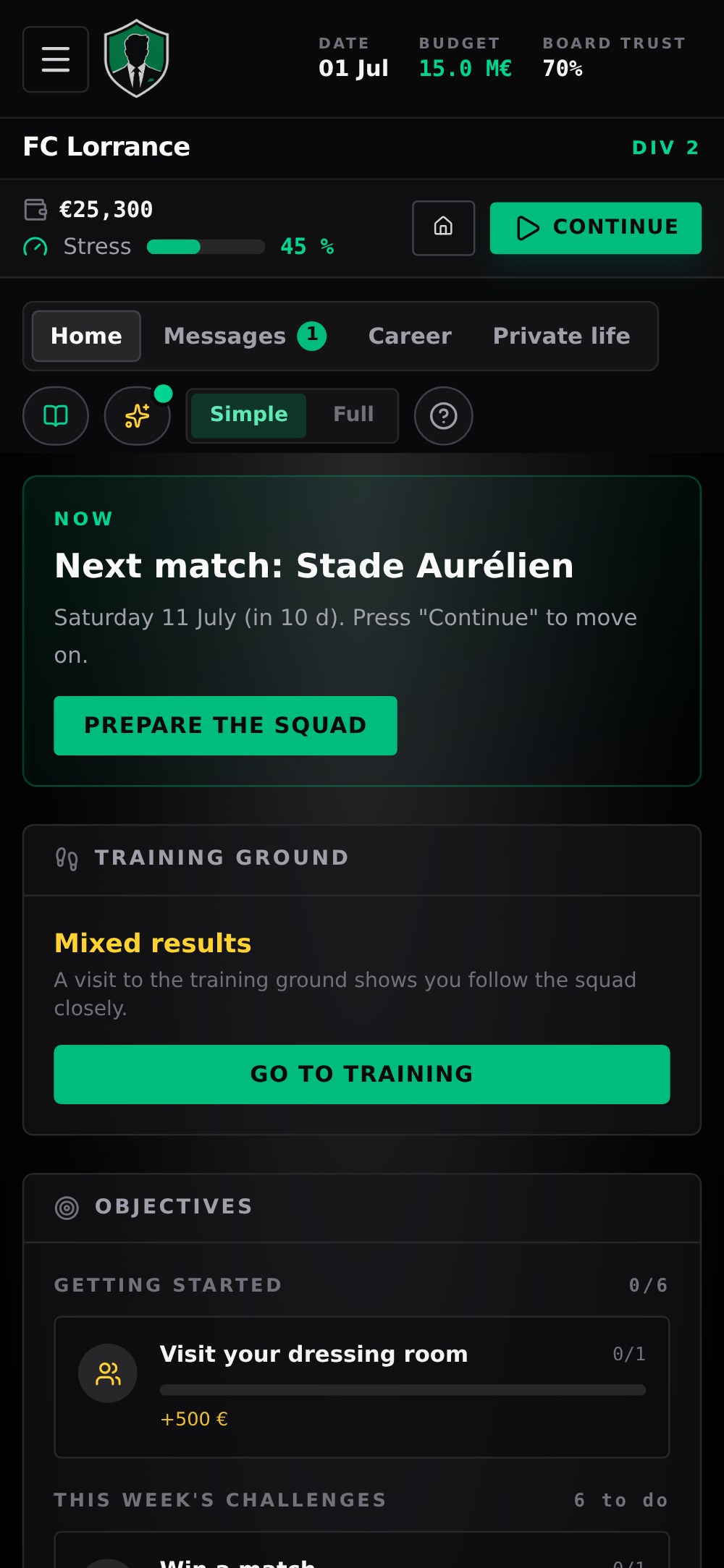
A Simple / Full button at the top right sets how much information you see. Simple mode keeps what you need to play fast, on a small screen for instance; Full mode shows all the numbers and panels (agenda, promises, coach profile, charts).
The EN / FR button in the sidebar switches the game between English and French; the page reloads. Player and club names are the same in both languages.
3D in a browser
Matches, the tunnel, the dressing room, the press conference or the stadium show in 3D. A click on a scene enlarges it (on a phone, one tap and it goes full screen). Scenes adapt to the device’s power: if the display slows down, the game switches by itself to a lighter version to stay smooth.
On a slow connection, the first opening loads the 3D models; after that the browser keeps them in memory.
Paid tiers and the licence
Tiers are optional. A purchase gives you an SD-… code that activates on up to 3 devices and across all your games. You can deactivate a device from the tiers window to free a slot. Again, no account is required: the purchase is tied to the code you receive by email.
Frequently asked questions
Do I need to install the game?
No. It runs in the browser, on computer, phone or tablet.
What happens if I close the tab?
Nothing: the game is saved automatically in the browser and reopens where you left it.
How do I play on another device?
Export your game to a file from the sidebar and import it on the other device, or use the optional Google sign-in.
Does it work on a modest phone?
Yes. 3D scenes adapt to the device’s power and Simple mode lightens the display.